

An invitation you can unfold
TwistInvite’s iPhone Duo preview lets you explore a Christmas invitation: begin with a ribbon-wrapped envelope, open the device to reveal a festive video, and see the event details and RSVP together. Drag to unfold it or replay the opening whenever you like. Use the example to find a mood you would love for your own celebration.
Apple’s first foldable iPhone arrived in stores on October 23, 2026. That gives invitation design a timely question: what should opening an invitation feel like when the screen itself can open?
Our answer starts with a familiar ritual: receive an envelope, discover the celebration, then decide whether you can come. Try the iPhone Duo invitation preview →
What happens in the Duo invitation preview?
First, an envelope sets the mood
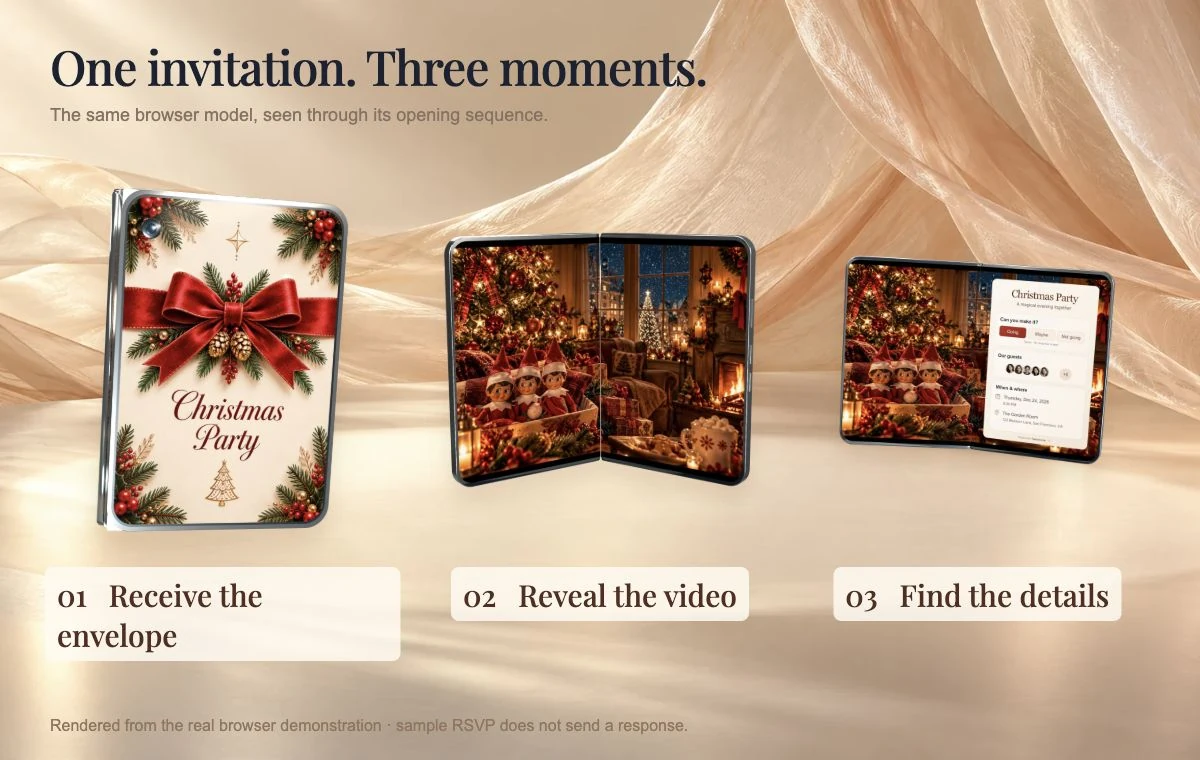
In the closed view, a portrait Christmas envelope fills the outer screen. A red ribbon, evergreen details, and warm cream tones introduce the celebration before the event information appears. The envelope has a purpose: it gives the invitation a beginning, much like opening a card from someone you know.
For more examples of that opening moment, explore our guide to animated envelope invitations. The folding-device preview takes that familiar idea into a different presentation.
Then, the video reveals the celebration
Open the device in the preview and a Christmas scene comes into view: a glowing tree, festive characters, and the warmth of a room ready for guests. Move the slider at your own pace, then replay the reveal to enjoy the opening again.
Think about the feeling you want guests to have. A cozy room can suit a family dinner; a playful scene can set the tone for an afternoon of games and gifts. Choose the invitation for the gathering you are actually planning.
Finally, the practical details have room
In the open presentation, the invitation scene shares the screen with an RSVP layout. The story gives the celebration its personality; the information helps the guest make a decision. The event name, date, time, venue, and response options each have a clear place.
The preview’s RSVP controls are a local demonstration and do not send a response. For the invitation workflow used by hosts and guests, see video invitations with RSVP.
How do you make the invitation feel like your event?
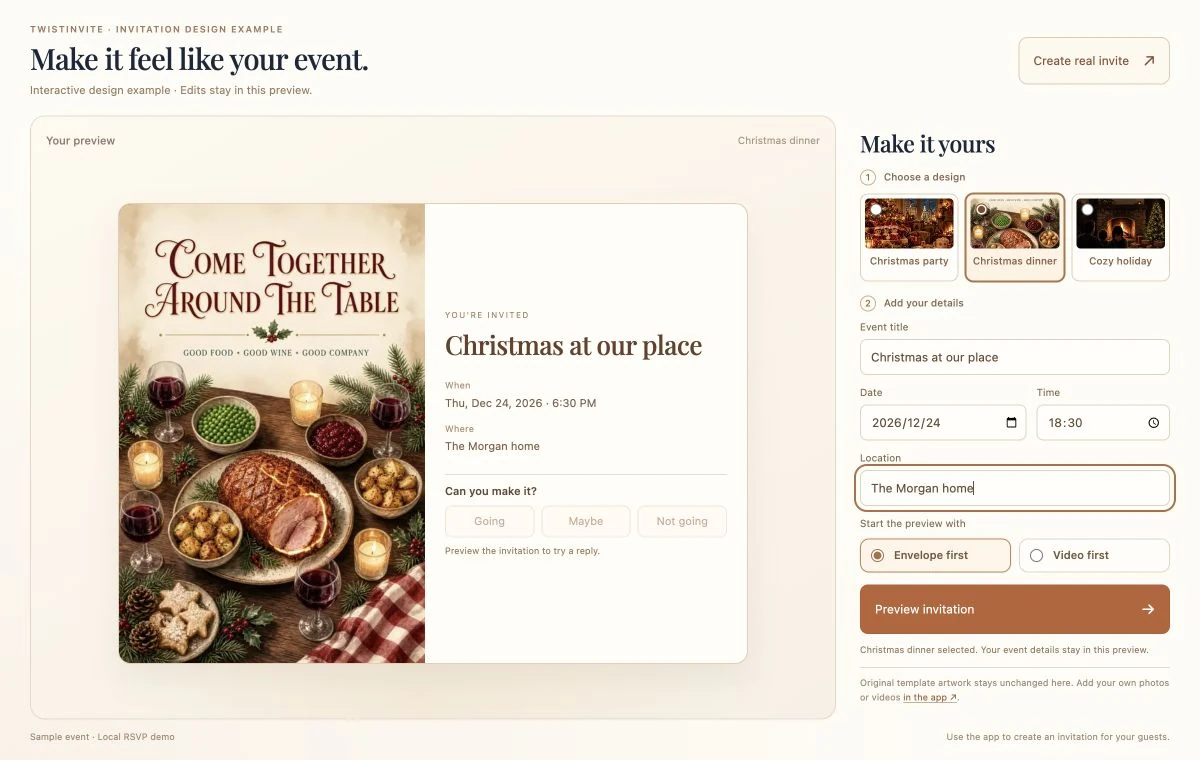
A ready-made template gives you a beautiful starting point. Choose the mood that fits your gathering, then add the event name, time and place. The design brings the scene together so you can focus on making the invitation personal.
For a more personal invitation, choose a design that supports your own photos or videos and add a memory that belongs to you. A family moment, a favorite place, or a short welcome from the host can give guests a reason to smile before the celebration begins.
Preview the invitation as a guest: enjoy the opening, watch the scene, and find the details and reply options. The best result feels welcoming from the first moment through the final response.
How can you use the idea for a Christmas invitation?
Start with the kind of gathering you are hosting. A candlelit dinner, a family Christmas party, and a cookie-decorating afternoon can all use an opening reveal, but they need different scenes and different information.

For a cozy Christmas dinner, choose a warm visual theme and keep the wording direct. Here is an example you can adapt:
Christmas at our place
Join us for dinner, music, and a little holiday magic.
Thursday, December 24 · 6:30 PM
The Morgan home · [full address]
Please RSVP by December 17 and let us know how many are coming.
Use your actual venue and full address, and make the reply deadline easy to spot. If you are arranging a gift exchange or asking everyone to bring a dish, include that in the event details rather than hiding it in a brief video frame.
Browse Christmas party invitations for design ideas, or use our Christmas party RSVP guide to plan the information you need from guests. You do not need to recreate the 3D device presentation to make a personal video invitation.
See a Thanksgiving invitation on iPhone Duo
The same foldable invitation flow also works for a Thanksgiving gathering. In this silent demo, filmed on iPhone Duo, the host closes the phone to open an envelope, edits a Thanksgiving Gathering invitation across both screens, then shares one link. Guests unfold the invite and RSVP with no account.
You do not need an iPhone Duo to watch the clips below — they play here in the browser. The interactive Christmas preview earlier in this guide is still the best way to drag the fold yourself. This Thanksgiving recording shows the same idea with a real device and a different celebration.
Guests open the invitation link in their browser on iPhone or Android. They do not need the TwistInvite app or an account.






Close your phone.
Open your invitation.
Fold it. The envelope opens. Unfold it, and the invite fills both screens. Opening an invitation became fun — not just another invitation app.
- Close to openClose the phone, and the envelope seals and opens — like a real envelope, only on a foldable.
- Fills both screensUnfold it, and the invitation fills both screens.
- Filmed on iPhone DuoThe fold action is fully on camera.
Edit on one screen, preview on the other.
Make a Thanksgiving invitation on the big unfolded iPhone Duo screen. Edit on the left, and a live preview stays on the right — much easier than on a normal phone.
- Pick a themeChoose an invite type and browse a Thanksgiving theme gallery.
- Edit beside the previewChange the wording and colors next to a live preview.
- Add a background and musicFinish the invitation on the same unfolded screen.
Guests RSVP with no account.
Share the invite link. Guests unfold the envelope, then RSVP in the browser — no app to download, and no account or verification.
- Unfold to open the inviteGuests open the envelope the same way — by unfolding the phone.
- Share the invite linkSend it from the share sheet to the thread you already use.
- RSVP with no accountGuests reply in the browser. Email is optional.
Watch the full walkthrough.
A silent clip, filmed on iPhone Duo, from the first template through share and RSVP.
- Pick a template
- Close to open the envelope
- Dual-screen editing
- Share and RSVP
How do you try the iPhone Duo preview?
- Open the iPhone Duo experience in your browser.
- Watch the opening sequence, then use Replay to start again.
- Drag the unfold slider to compare the closed, half-open, and fully open views.
- Try the RSVP demonstration to see the response options. No event response is submitted.
You can try this preview on your phone or computer. When you find an invitation style you love, follow our video invitation guide to choose a template, add your event details, and preview what your guests will see.
Unfold the invitation yourself.
Drag to open, play the video, and explore the RSVP demo. No reply is sent.
Questions and answers
Do I need an iPhone Duo to see the preview?
No. You can try the interactive preview on your phone or computer, move the unfold slider, and replay the Christmas reveal.
Does choosing “Going” in the preview send a real RSVP?
No. The preview is a local demo. Create and share your own event invitation to collect real replies.
Can I use my own photos or videos?
Choose a design that supports personal photos or videos, then add your own media and event details. Preview the finished invitation before sharing it.
Can I make a Christmas video invitation without a folding phone?
Yes. Choose a Christmas design in TwistInvite, add your event details, and share your invitation link. Your guests can open it on their phones.
Sources & further reading
Source information checked October 31, 2026.
An invitation that unfolds with you.
Explore the device, watch the invitation, and try the RSVP demo.
Explore the iPhone Duo experience →Create it in the TwistInvite app
Download free on iPhone or Android, then share one link with your guests.