



A video invitation is a digital invite that presents your event in motion. Instead of a single static card, it can reveal the name, date, time, and place in sequence, then leave guests with a clear way to reply.
This guide shows you how to make a video invitation in the TwistInvite app: pick a template, add your event details, preview the result, and share one link. Guests open that link, watch the invitation, and enter their name and email to RSVP — no account or sign-in needed.



Quick Answer
- Download the TwistInvite app. It is free to download on the App Store and Google Play.
- Choose a template and add the event title, date, time, and location.
- Preview the invitation on your phone and check that the details are easy to read.
- Share the invite link by copy, WhatsApp, Messages, or Email.
- Guests open the link, watch the invitation, and enter their name and email to reply Going, Can’t make it, or Maybe — no account or sign-in needed.
Make a Video Invitation With TwistInvite
Video invitations on TwistInvite are made in the app and shared as a link. Guests do not need the app to watch or to reply. Each step below is shown with a real screenshot from the app. When the preview looks right, jump to how to share and collect RSVPs.
1 Get the app
Download TwistInvite on iPhone or Android. It is free to download on the App Store and Google Play. Open a template folder and start from a design that matches your occasion. The template already gives you a consistent style; your job is to make the facts unmistakable.
2 Choose a template
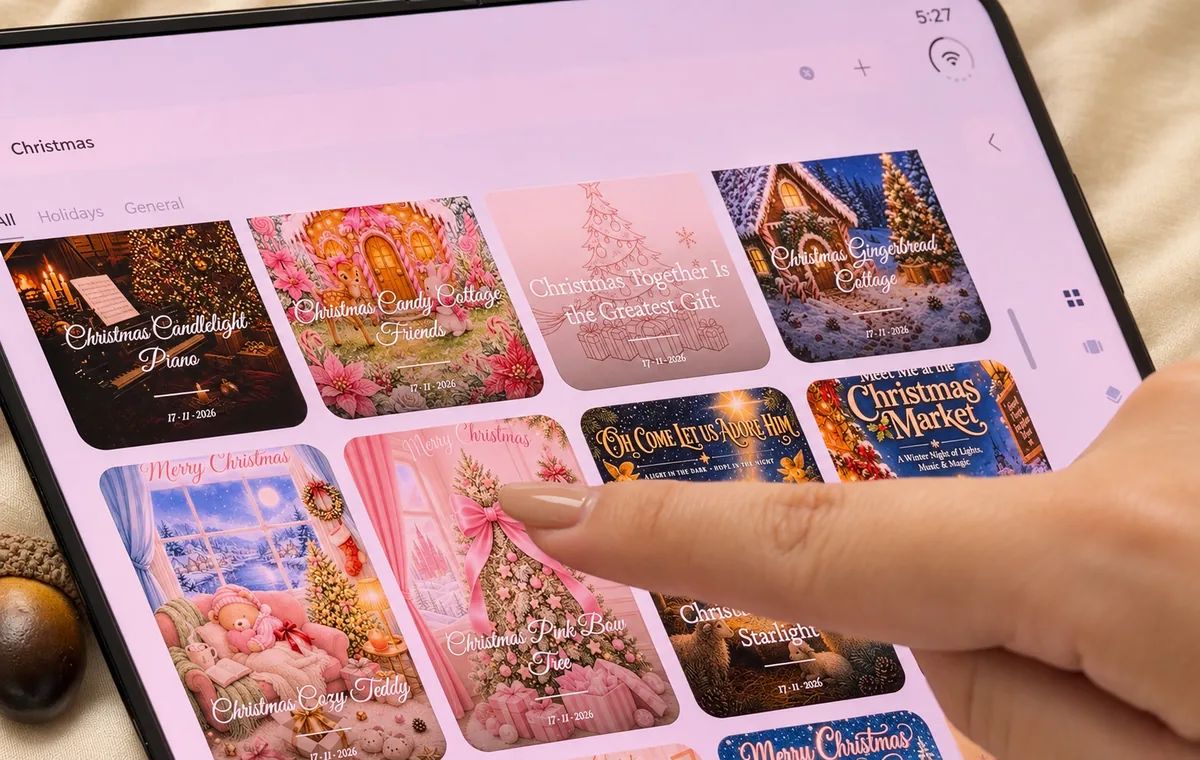
Open the template browser and pick a design. The screenshot shows the Christmas folder, with All, Holidays, and General tabs. Choose a style that fits and open it to start editing. For wedding, birthday, baby shower, and holiday folders, see the examples later on this page; the steps stay the same.
3 Add your event details
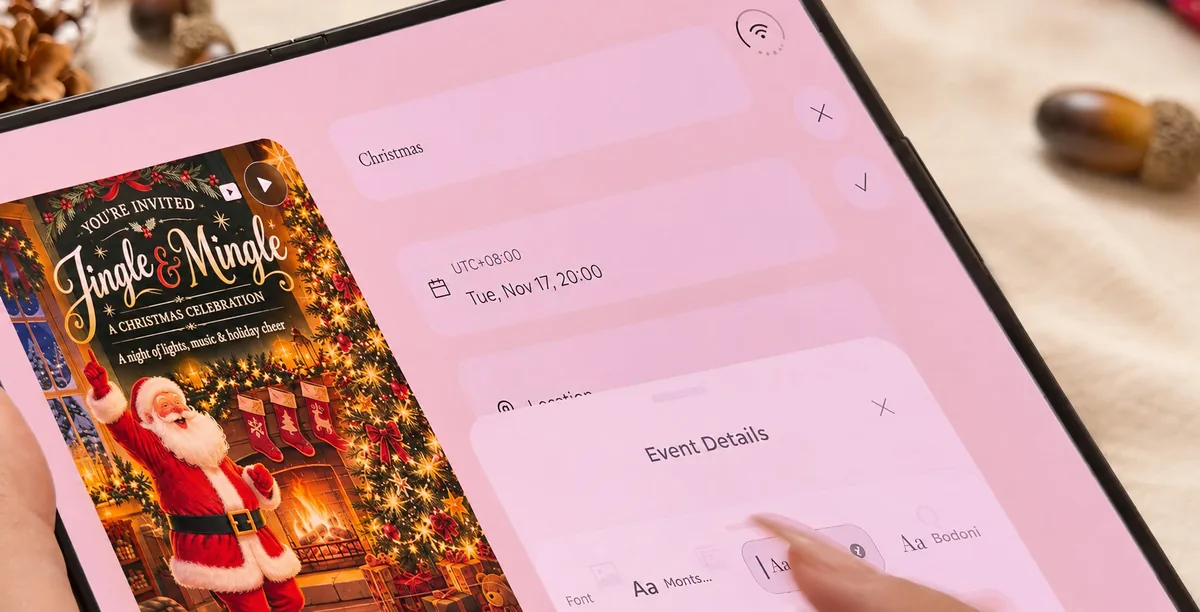
Fill in the information guests need: a title, a calendar date and time (Tuesday, November 17 at 20:00), and a Location. Event Details lets you adjust the type — the screenshot shows fonts such as Montserrat and Bodoni. A live preview stays on the left, with a play control, so the card updates as you work.
4 Add background music
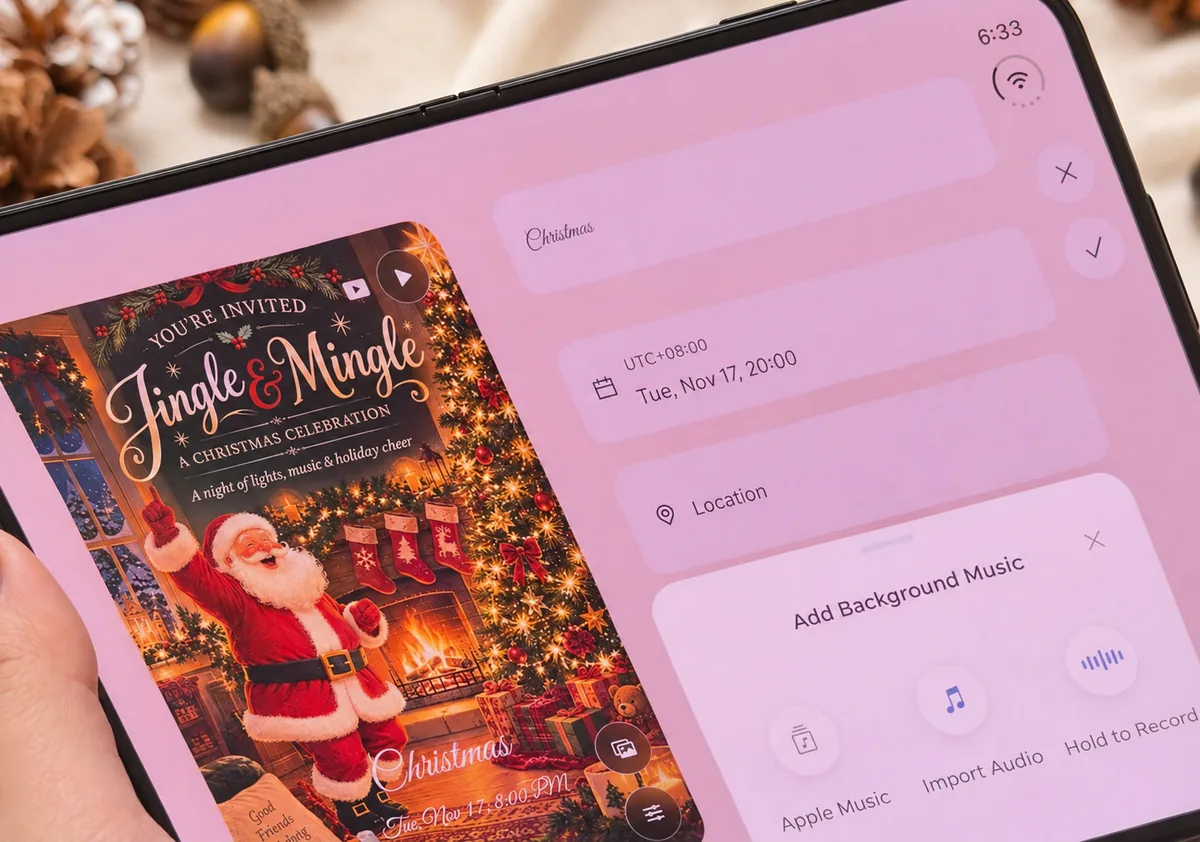
Sound is optional. To add it, open Add Background Music and choose Apple Music, Import Audio, or Hold to Record. You can also leave the invitation silent; keep the name, date, time, and location visible on screen, because some guests will watch without audio.
5 Preview the invitation
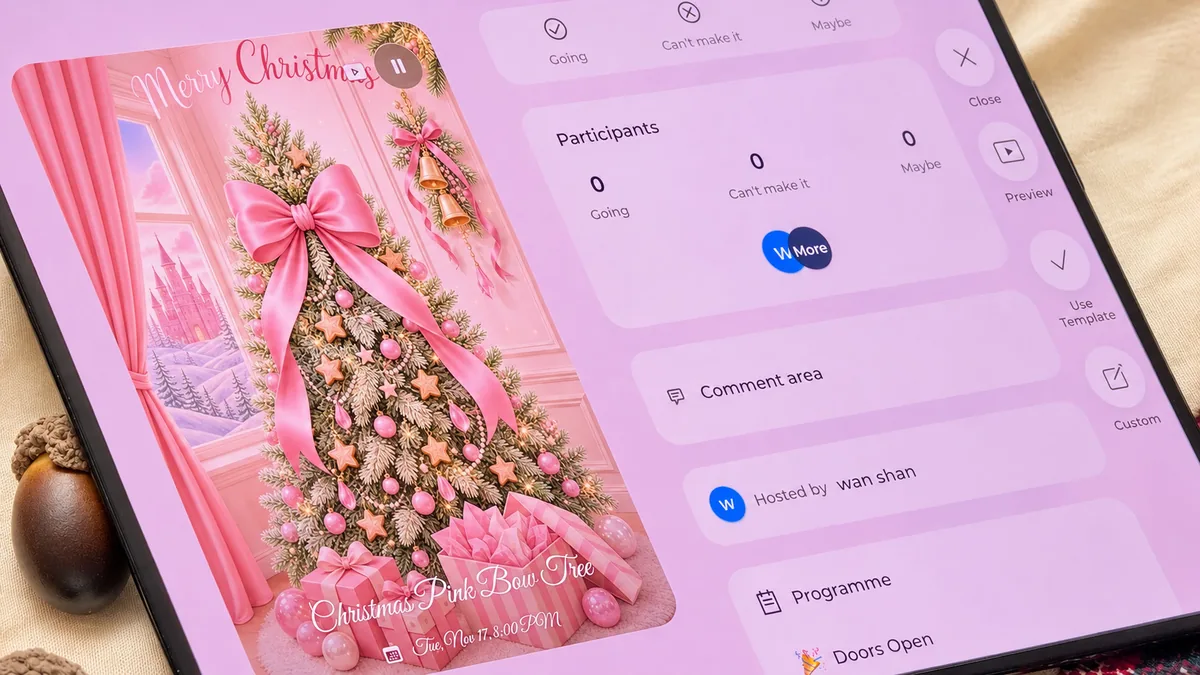
Use Preview to watch the invitation as guests will see it. In the screenshot, Preview sits on the right-hand rail, with Close, Use Template, and Custom.
You can play or pause the card and see counts for Going, Can’t make it, and Maybe, plus comments, a Hosted by line, and details such as Doors Open. Check that the name, date, time, and location stay clear on a phone; if not, adjust them before you share.
Get the TwistInvite app
Free to download on the App Store and Google Play, then share one link with your guests.
Real Video Invitation Examples
The fastest way to start is a ready-made template. The posters below are real designs from the TwistInvite library.
Each link opens the matching template folder in the TwistInvite app — you edit the invitation in the app, not in a web editor. See also the video invitation maker.






Inside the app, templates are also organized by folder and by tab. The Christmas folder in the screenshots for this guide includes designs such as Christmas Pink Bow Tree, Christmas Candlelight Piano, and Christmas Candy Cottage Friends, with tabs for All, Holidays, and General. Pick a style that already feels like the event, then change the details.
Wedding
Wedding video invitations work best when the first moments feel like an invitation, not a long title sequence. Italian Coast Wedding, Royal Palace Wedding, and Lake Como Wedding are in the library. Put the couple’s names, the date, and the venue where they are easy to read. See wedding invitations, wedding invitation video ideas, and video wedding invitations.
Open wedding templates in the TwistInvite app
Birthday
Start in the birthday template folder with designs such as Olivia’s Tropical Birthday Party, Bow Heart Thirteen, and Pastel Bow Birthday Garden, then add the name, date, time, and place. See digital birthday invitations and online birthday invitation ideas.
Open birthday templates in the TwistInvite app
Baby shower
A baby shower video invitation should make the parents-to-be, the date, and the location easy to catch on a first watch. We Can Barely Wait Baby Shower and Forest Fox Baby Shower are two library starting points. See baby shower invitations and baby shower video invitations.
Open baby shower templates in the TwistInvite app
Holidays and other gatherings
The same steps work for seasonal gatherings. For Thanksgiving, open the Thanksgiving folder and start from a design such as Thanksgiving Harvest Celebration. Christmas designs include Classic Christmas Party, and the in-app Christmas folder holds additional styles such as Christmas Pink Bow Tree.
You can also open the Hanukkah folder, or the New Year’s Eve folder for 2027. Oktoberfest and cocktail-tasting folders are also available, including a design such as Moonlight Supper Club.
See Thanksgiving invitations, Christmas party invitations, Hanukkah invitations, and New Year’s Eve invitations, or open a folder directly:
What to Write in a Video Invitation
Keep the on-screen message short enough to read on a phone. Most video invitations only need the event name; who it is for, when that helps; the date and time; the location; and a way to reply if you need a headcount.
Secondary notes such as parking or a dress code can live on the event page, which also has room for a participant list and comments.
Write the title the way you want it to appear on the card. Use the names guests will recognize, and keep the date, time, and place unambiguous — including the year when that avoids confusion.
If you need a headcount, make it clear that guests can reply; in TwistInvite they choose Going, Can’t make it, or Maybe and enter their name and email, with no account or sign-in needed. For wording help, see what to say in a video invitation.
Let the first frame make it obvious this is an invitation. Give the date and place enough time on screen, keep the type large enough for a phone, and make sure the invitation still makes sense with the sound off — music is optional, so the essentials should never exist only in the audio.
A video invitation can pace those facts so guests recognize the occasion first. Readability on a phone matters more than how many effects you add. If you are comparing formats, see how to make a digital invitation.
How to Share and Collect RSVPs
When the preview looks right, open Share invite link. Copy the share text, or send the link through WhatsApp, Messages, Email, or the other options in the sheet. The card shows your invitation plus a share.twistinvite.com link.
One link is enough: guests use it to watch the invitation and to reply. A video file cannot collect RSVPs, so the link is what you want to send. For sending from different phones, see how to send video invitations from iPhone or Android.
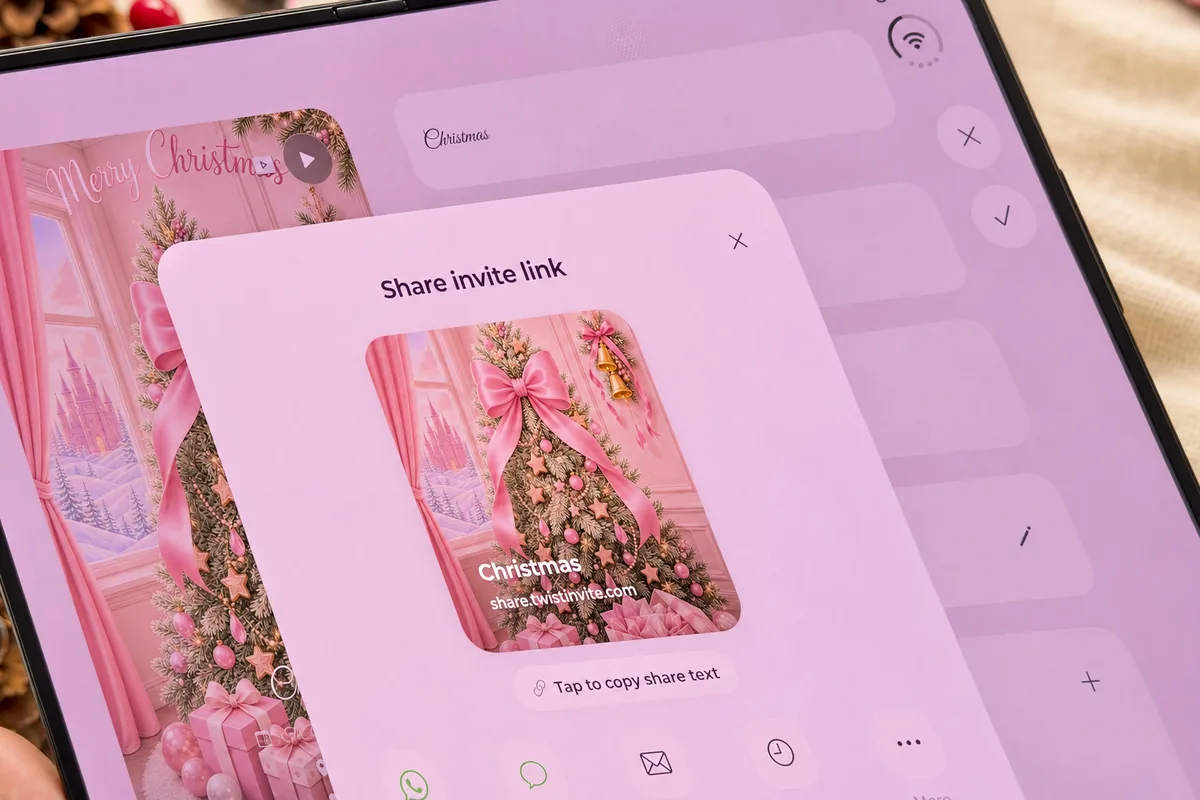
Guests do not need a TwistInvite account, a sign-in, or the app. They open the link, watch the invitation in the browser, and enter their name and email to reply. No verification is required.
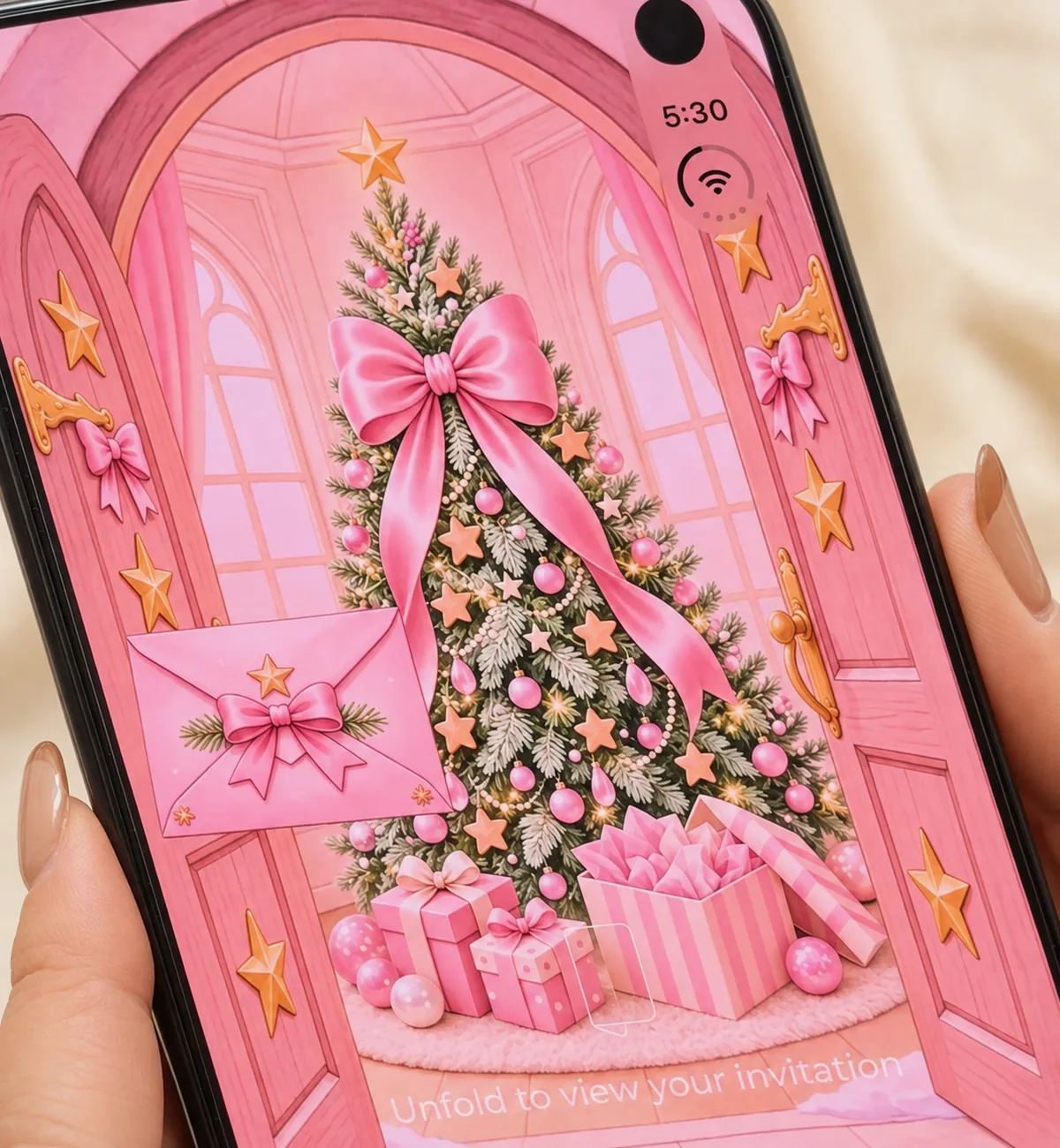
The first screen they may see is an envelope with the prompt “Unfold to view your invitation.” After they unfold it, the event page lets them play or pause the invitation, see who is coming, read or leave comments, and find the host name.
These screenshots also show a Photos entry at the bottom; this guide does not go beyond that visible label.
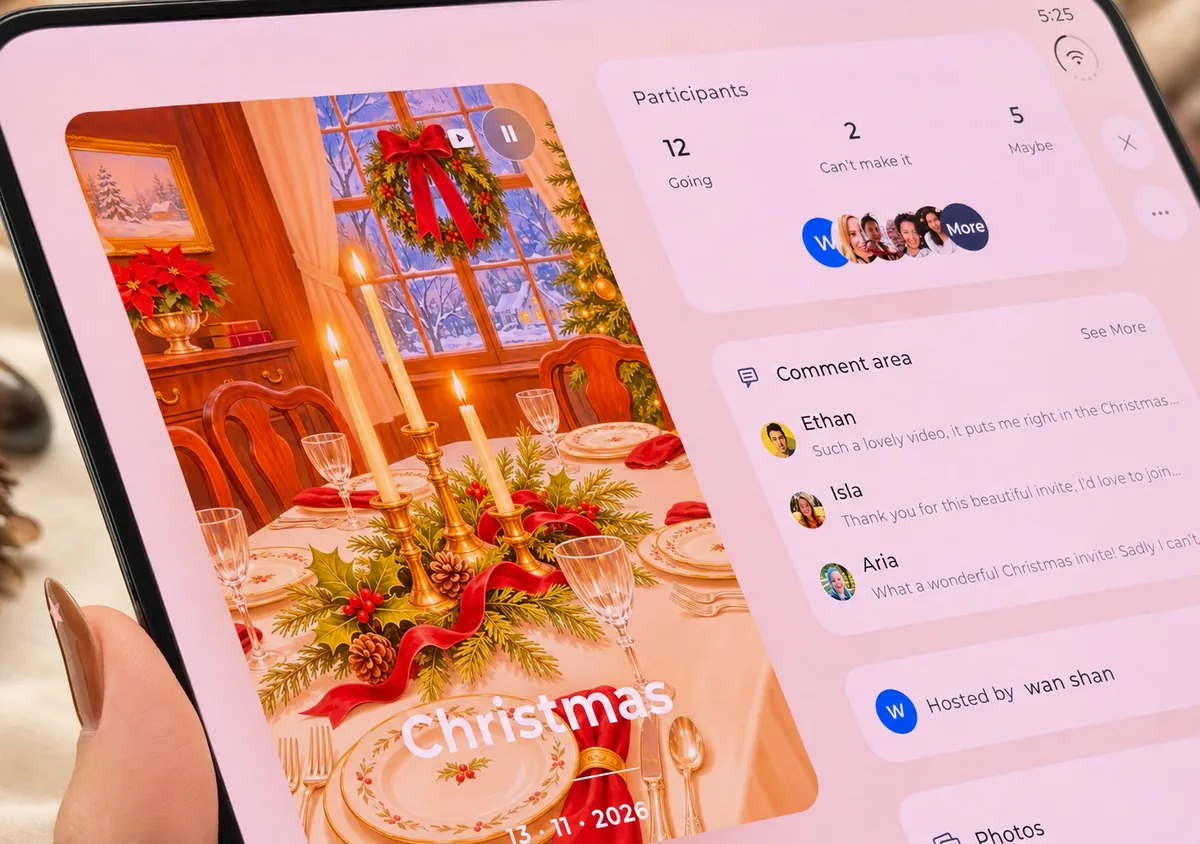
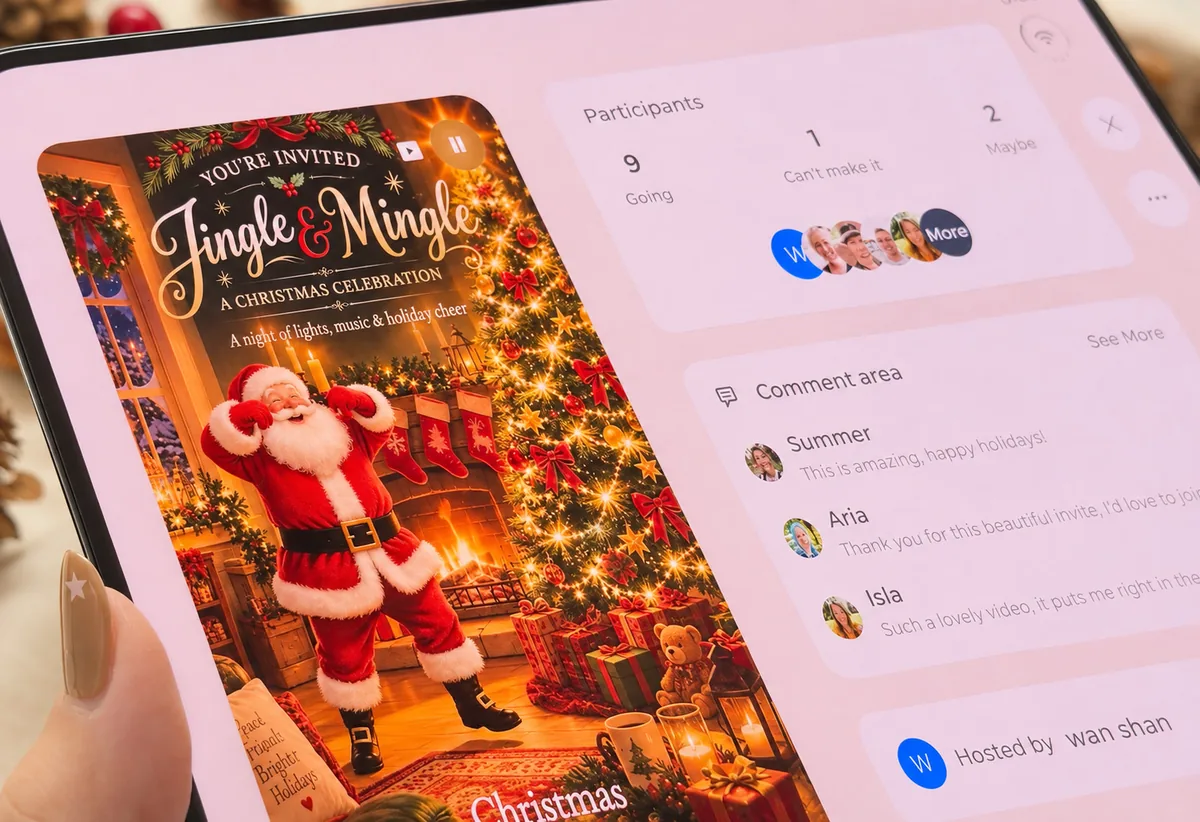
To reply, guests choose Going, Can’t make it, or Maybe, then enter their name and email. The form also includes Phone and a Message field labeled Optional. A note on the form explains that you can reply without signing in. After a reply, the event page updates the participant counts and the conversation.
For a closer look at collecting replies with the same link, see video invitations with RSVP, our video invitations with RSVP guide, and the RSVP website page.
Common Mistakes
These are the problems that most often get in the way of a video invitation guests can actually use. Each one can be checked in the TwistInvite app — in the editor, in Preview, or on the share sheet — before you send the link.
- Crowding every fact into the moving frames. If the title, a long message, the address, and extra notes all appear at once, or the date and place flash by before anyone can read them, guests will miss the details that matter. Keep the on-screen text short, and leave secondary notes for the event page around the invitation.
- Putting essential information only in the audio. Music is optional, and some people will watch with the sound off. The event name, date, time, and location should be visible on screen even if you add Apple Music, imported audio, or a recording.
- Sending a video file instead of the invite link. A file can show the invitation, but it cannot collect RSVPs. Share the invite link so guests can watch and enter their name and email to reply Going, Can’t make it, or Maybe in the same place, with no account or sign-in needed.
- Skipping Preview. The editor includes a Preview control for a reason. Watch the invitation on your phone and check the title, date, time, and location before you copy the link. It is much easier to fix a typo in the editor than after the invitation has already gone out.
FAQ
How do I make a video invitation?
Download the TwistInvite app, choose a template, add the event title, date, time, and location, preview the invitation on your phone, and share the invite link. Guests open that link, watch the invitation, and enter their name and email to RSVP — no account or sign-in needed. The walkthrough is in Make a Video Invitation With TwistInvite.
Is it free to make a video invitation?
TwistInvite is free to download on the App Store and Google Play. You make the invitation in the app, then share a link with your guests.
How long should a video invitation be?
This guide does not state a required or maximum length, because no duration limit is shown in the app screens used here. What matters is that guests can read the name, date, time, and location on a phone, and that important text does not flash by too quickly. Use Preview to check the pacing before you share the link.
Does a video invitation need music?
No. Music is optional. If you want it, the Add Background Music panel offers Apple Music, Import Audio, and Hold to Record. Because some people will watch without sound, keep the name, date, time, and location visible on screen either way.
How do I share a video invitation and collect RSVPs?
Open Share invite link in the app, then copy the link or send it through WhatsApp, Messages, or Email. Guests open that same link, watch the invitation, and enter their name and email to reply Going, Can’t make it, or Maybe — no account, sign-in, or app install needed. See How to Share and Collect RSVPs.
Get the TwistInvite app
Free to download on the App Store and Google Play, then share one link with your guests.
Open a folder directly in the app: birthday, wedding, baby shower, or Christmas.