

Yes, but first decide where you want the video to appear
Yes. Apple documents videos in shared albums and an Add a Link field for external destinations. Its background instructions describe images, not a video-background workflow. For a side-by-side comparison, see our Apple Invites alternative page.
Those distinctions matter. A clip that welcomes guests before they reply serves a different purpose from an album they contribute to after responding. Choose the experience first, then the place for the video.
Three places people mean when they say “add a video”
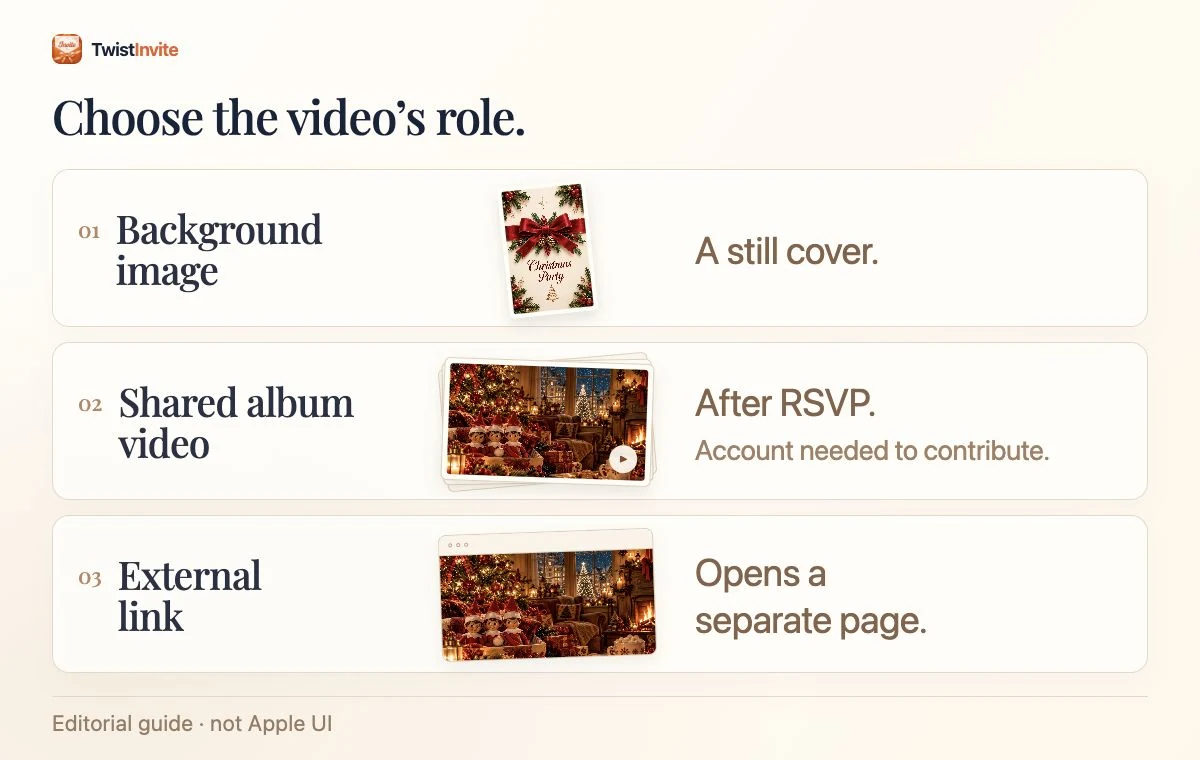
| What you want | Where to look | What to check |
|---|---|---|
| A moving invitation cover | Background settings | The documented workflow uses images; do not assume an album clip becomes the cover. |
| Clips from the celebration | Shared album | Participation requirements and who can contribute. |
| A welcome video guests can open | An event link | The destination’s playback, access settings and return path to RSVP. |
Can a video be the Apple Invites background?
Apple’s event-creation instructions describe photo and image backgrounds. For a welcome video guests can open, add a link to the clip; for videos people contribute to the celebration, use the shared album.
If you are designing the invitation around motion, resolve this before editing a long clip. Imagine a birthday greeting that ends with the party date: a still cover cannot communicate the timing or voice that makes that greeting work. Choose a frame that stands on its own, then give the video a clearly named destination.
A good still frame can show the host, a place or the atmosphere of the event. Keep the essential information in the event details too, so the invitation remains useful when someone is somewhere they cannot watch or listen.
Use the shared album for videos people will contribute
Apple explicitly documents adding photos and videos to a shared album. Its guide says contributors need an Apple Account and can add items after they RSVP. In the app, open the event, join the album, choose Add Photos, and select the photo or video you want to add.
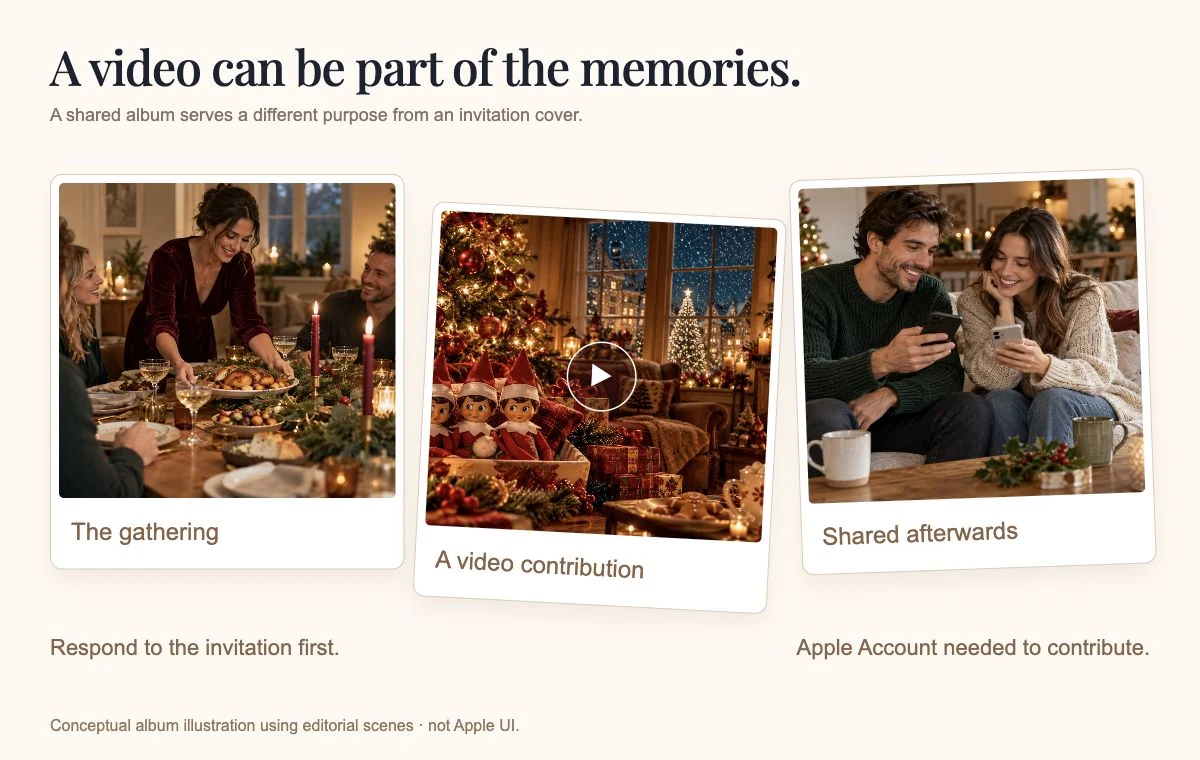
This makes sense for a celebration that continues through everyone’s memories: a toast, a short birthday message, or clips from a family gathering. Tell guests what kind of contribution you would enjoy. “Add a little moment from tonight” is clearer than leaving an empty album unexplained.
Do not plan an album contribution as though it were the opening scene every unconfirmed guest will see. Being able to reply to an invitation and being able to contribute media are separate tasks. Keep the initial invitation understandable without requiring anyone to add something.
Use an event link for a separately hosted video
The Apple creation guide describes adding a web address, title and description. Add the address of your video page so guests can open it from the event.
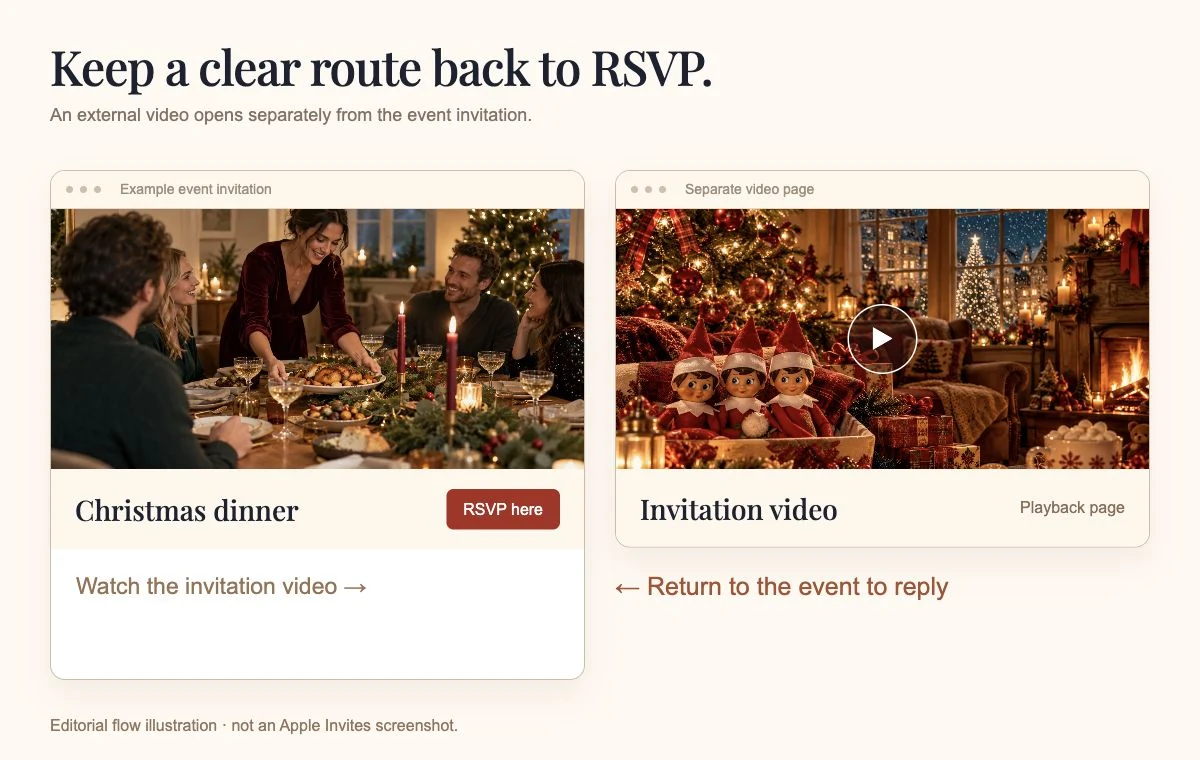
Name the destination for its purpose. “Watch our birthday welcome” tells guests more than “Click here.” Then give one sentence of context: “A short message from us before Saturday.” Keep the event’s actual date, address and response instructions in the invitation instead of making the clip their only location.
Before sharing, open the destination as a guest. A video that plays while you are signed in may ask somebody else for permission. If you use a separate invitation service for the video, decide where guests should reply; sending them between two active RSVP forms can leave you counting two incomplete lists.
A practical example: a Christmas dinner invitation
Suppose you have filmed a short welcome beside your Christmas tree. You want friends to hear the greeting, know when dinner begins, and tell you how many people are coming.
- If the video is an extra: use a still image for the invitation, link to the greeting, and keep the dinner details and reply request together.
- If you want guests to share memories: introduce the shared album as a place for their own clips. Keep that request separate from the RSVP.
- If the video is the invitation’s opening: compare a dedicated video invitation with the image-and-link approach before building the event.
There is no need to make every part move. One greeting and one clear response route can feel more personal than several media destinations with no obvious next step.
What should you test before sending?
- The first screen: can someone understand who is inviting them and what the event is without watching anything?
- The video destination: does it open with the access settings you intended, rather than asking an unexpected person to sign in?
- The sound: does the invitation still communicate the necessary details when the viewer keeps audio off?
- The reply route: is it clear where to respond after watching, and which guest list you will use?
- The small screen: are names and captions readable, with faces and important text still inside the frame?
Before sending, open your finished invitation once more. Watch the welcome, read the details, and make sure guests can find where to reply.
When is a dedicated video invitation worth considering?
Consider one when the opening video is central to the invitation and you want the celebration and response information presented together. Our video invitations with RSVP page explains TwistInvite’s invitation workflow; Apple Invites vs. TwistInvite compares the wider choice of tools.
For a visual example, explore TwistInvite’s Christmas Duo preview. It shows our own invitation experience, separate from Apple Invites. Enjoy the reveal and try the sample response choices; no RSVP is sent from the demo.
Questions and answers
Can I upload a video as my Apple Invites background?
Apple’s creation guide describes photo and image backgrounds. You can share a video through the event’s shared album or add a link that guests can open.
Can guests add videos to an Apple Invites shared album?
Yes. Apple’s shared-album guide says guests with an Apple Account can add photos and videos after they RSVP to the event. Contributing to the album is a separate task from replying.
Does adding a video link embed it in the invitation background?
Adding a link gives guests a destination they can open to watch the video. The invitation background remains a separate part of the event design.
Sources & further reading
Source information checked October 31, 2026.
An invitation that unfolds with you.
Explore the device, watch the invitation, and try the RSVP demo.
Explore the iPhone Duo experience →Create it in the TwistInvite app
Download free on iPhone or Android, then share one link with your guests.