

To send a video invitation from an iPhone to an Android guest, share an invitation link in the messaging app you both use. With TwistInvite, that link opens a browser page where the guest can watch and RSVP without installing the host’s app. If you only need to send a clip, you can attach the video instead—but the file itself will not collect replies.
Whether your friends use iPhone or Android, a welcoming invitation gives them the same essentials: what you are celebrating, when and where to join you, and how to reply. Choose a template you love, add your details, and send the finished invitation with a personal message. To build one in a few minutes, try the video invitation maker.
Should you send an invitation link or an MP4?
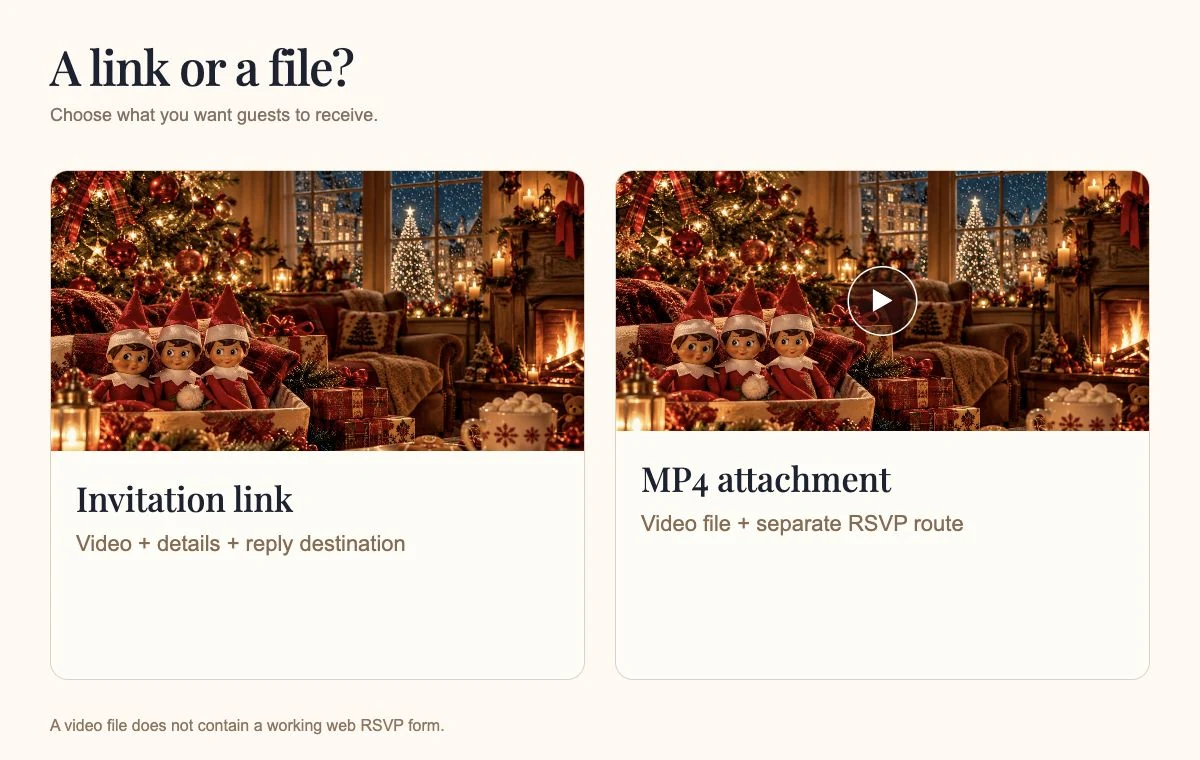
| What you send | What the guest receives | Best fit |
|---|---|---|
| Invitation link | A page with the video, event information, and the reply controls supplied by your invitation service. | You want guests to watch and submit an RSVP in one place. |
| Video attachment | A playable copy of the clip. Names, dates, and instructions appear only if you included them in the video or message. | You are sharing a teaser, greeting, or announcement and will manage replies separately. |
| Video plus invitation link | A clip in the chat and a separate destination for details and replies. | The preview is worth showing immediately, and the message clearly identifies the link as the RSVP destination. |
An MP4 can show the word “RSVP,” but that text is part of the picture; it is not a working form. If guests should reply in chat, say so. If they should reply through an invitation page, include its link and make that the only response instruction.
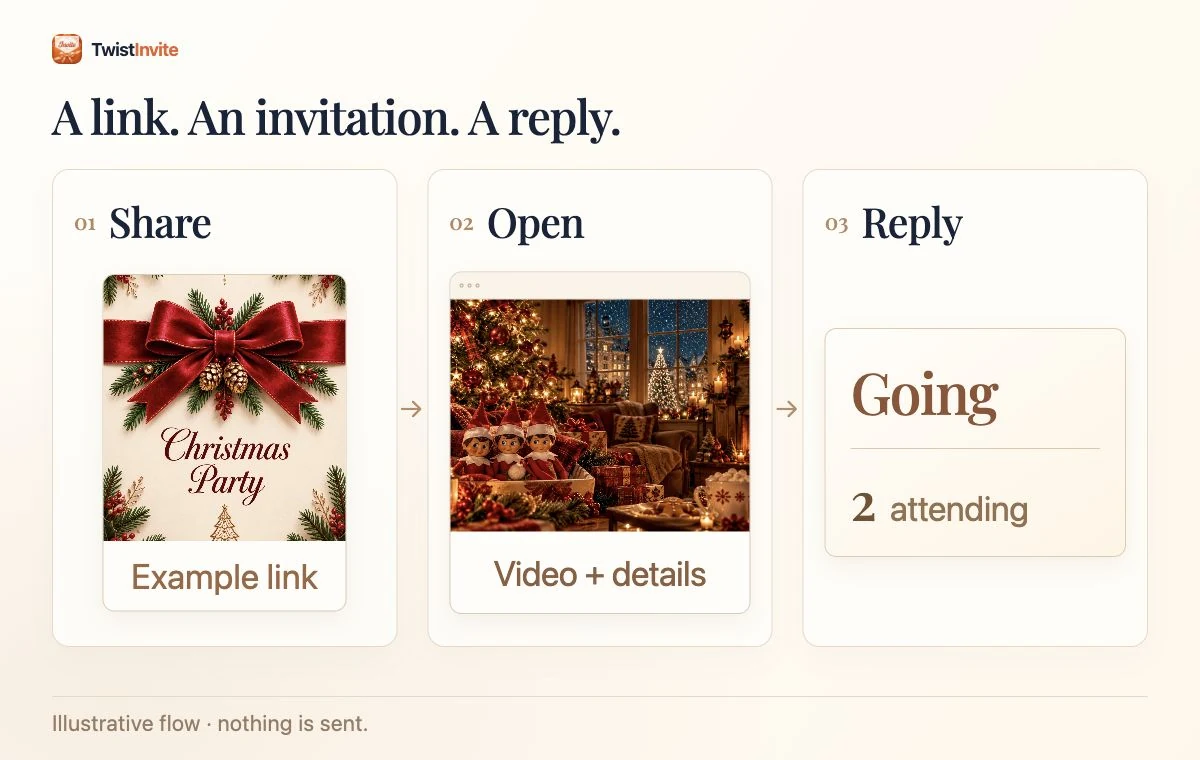
How do you send a TwistInvite link?
- Prepare the invitation. Choose a design, add the event details, and preview the video and RSVP information in TwistInvite.
- Copy the guest invitation link. Use the share link intended for recipients, not an editing screen or a general template page.
- Open your chat. Paste the link into WhatsApp or Messages, alongside a short personal invitation.
- Test before sending to everyone. Open the exact link and ask a trusted person on a different phone to check the guest view.
- Collect responses in one place. Ask guests to use the invitation’s RSVP controls, then check the event responses in TwistInvite.
Our video invitation and RSVP workflow explains the host and guest steps. You can use the same approach for a birthday, dinner, baby shower, or holiday party; the wording should change with the occasion.
Sending through WhatsApp
WhatsApp’s sharing instructions describe copying a link, opening an individual or group chat, pasting it, and sending. Use that link workflow when the RSVP lives on an invitation page. Attaching a clip from Photos is a separate workflow and does not turn the clip into an interactive invitation.
Send to an existing conversation or an appropriate group where recipients expect to hear from you. Check that the text explains whose party it is; a bare link gives the guest little context.
What should you send through Messages?
Paste your invitation link into the conversation and add a short note that makes the invitation feel personal. Tell your guest whose celebration it is and ask them to reply through the link, so you can keep the guest list together.
If you would rather send just the clip, see Apple’s Messages guide for sharing photos and videos. Include the event details and a separate invitation link if you want guests to RSVP there.
An invitation link keeps the video, the celebration details, and the reply options together. Your guest can enjoy the opening, check the plans, and tell you whether they are coming without hunting through the chat for another message.
What should you write with the link?
Include a name, an occasion, the date or timing, and one clear request. Replace every bracketed detail below before sending.
Make a sample invitation feel like yours.
Choose a design, edit the event details, and preview the invitation. No reply is sent.
Hi [name]! We’d love you to join us for [occasion] on [date] at [time]. Here’s the video invitation with the address and RSVP: [invitation link]. Please let us know by [deadline]—hope you can make it!
For a Christmas gathering, you can keep the message warm without repeating all the information from the invitation:
Christmas at our place this year! Open our little video invitation for the details: [invitation link]. Please RSVP there by [deadline] so we can plan the food. We’d love to see you.
For wedding-specific etiquette and wording, use our wedding invitation messaging guide. For a posada, see posada WhatsApp messages.
What should you check on the receiving phone?
- The destination: the link opens the intended event and shows the correct host.
- The first frame: important names and artwork are visible before playback.
- The information: the date, local time, venue, and full address are readable without replaying the clip.
- The reply: the guest can find the response control and understand what it submits.
- The sound: the invitation remains understandable with audio muted.
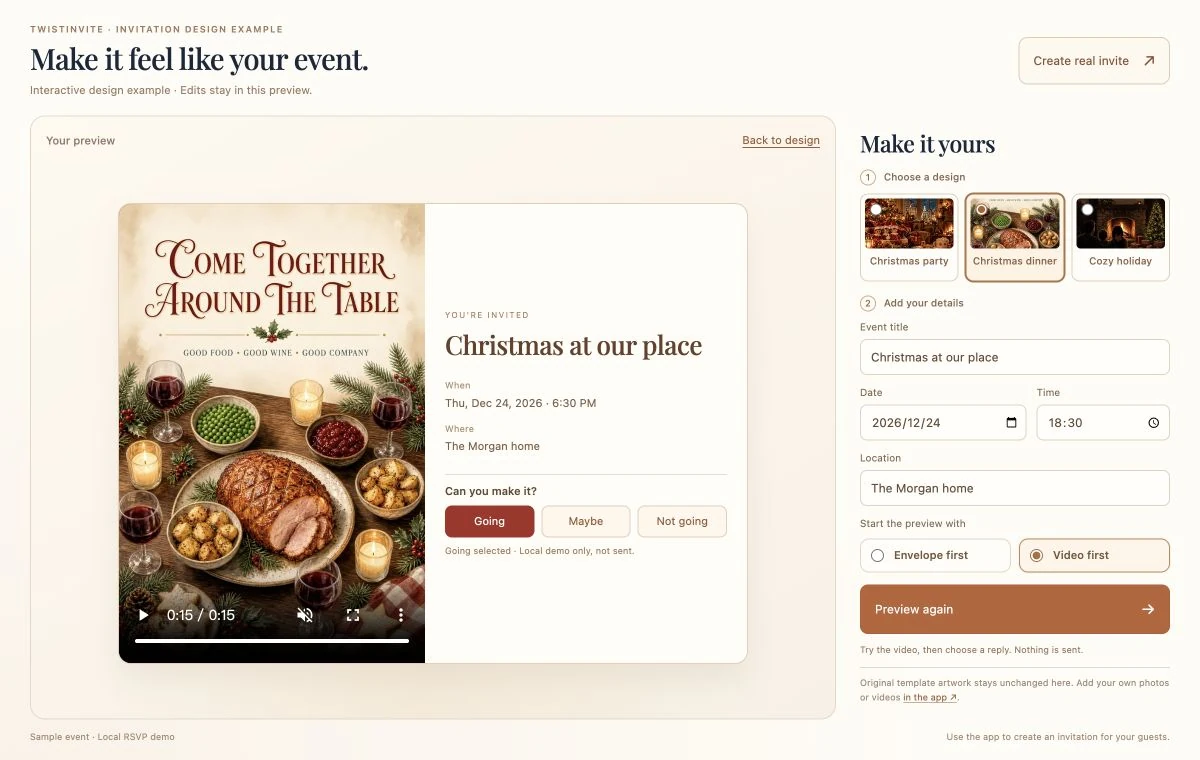
Open the invitation as a guest and enjoy it from beginning to end: the opening should play smoothly, the event details should be easy to find, and the reply options should be clear. For seasonal inspiration, explore our Christmas invitation ideas. You can also try the interactive Duo preview; its sample RSVP is a local demo and does not send a reply.
How do you know someone has replied?
Use the actual RSVP record. WhatsApp’s read-receipt guide describes delivery and read status. Reading a message does not tell you whether the guest can attend, how many people are coming, or whether they completed the invitation form.
If someone answers casually in chat, acknowledge them and ask them to add the response through the invitation link when you need one consistent guest list. When sending a reminder, repeat the same RSVP destination and deadline. A clear invitation and one place to reply are easier to manage than several conflicting instructions.
Questions and answers
Can an Android guest open a TwistInvite invitation sent from an iPhone?
Guests open the shared invitation link in their browser to watch and RSVP, without installing the TwistInvite app or creating an account. Test your actual guest link before sharing widely.
Should I send the video or the invitation link?
Send the invitation link when you want guests to watch, find the event details, and RSVP in one place. Send a video file when you want to share just a greeting or teaser, and include clear reply instructions.
Can I collect RSVPs inside an MP4?
An ordinary MP4 is a video file, not an interactive form. Include an invitation or RSVP link, or tell guests to reply in chat if that is how you plan to manage responses.
Do blue check marks count as an RSVP?
No. Read status indicates that a message was read. It does not record an attendance choice; use the event’s RSVP responses for your guest list.
Sources & further reading
Source information checked October 31, 2026.
An invitation that unfolds with you.
Explore the device, watch the invitation, and try the RSVP demo.
Explore the iPhone Duo experience →Create it in the TwistInvite app
Download free on iPhone or Android, then share one link with your guests.